Adelante Recurring Payments
Overview
The Adelante Recurring Card Payment integration enables recurring card payment plans to be created and managed through PayBridge. Customers are redirected to an Adelante-hosted payment page to authorise recurring card payments before being returned to the Jadu platform to complete their form.
The integration provides:
- A form action to create a recurring payment plan
- A form action to amend a recurring payment plan
- A form action to cancel a recurring payment plan
The integration only handles the creation, amendment and cancellation of recurring payment plans. It does not process notifications relating to future collections, failed collections, chargebacks, card expiry, or any other payment lifecycle events after the recurring payment has been created. These processes must be handled separately.
Configuring the Adapter
Before configuring the integration, obtain the following information from Adelante:
- API username
- API password
- Account ID
- Fund code(s)
- Test & production API base urls
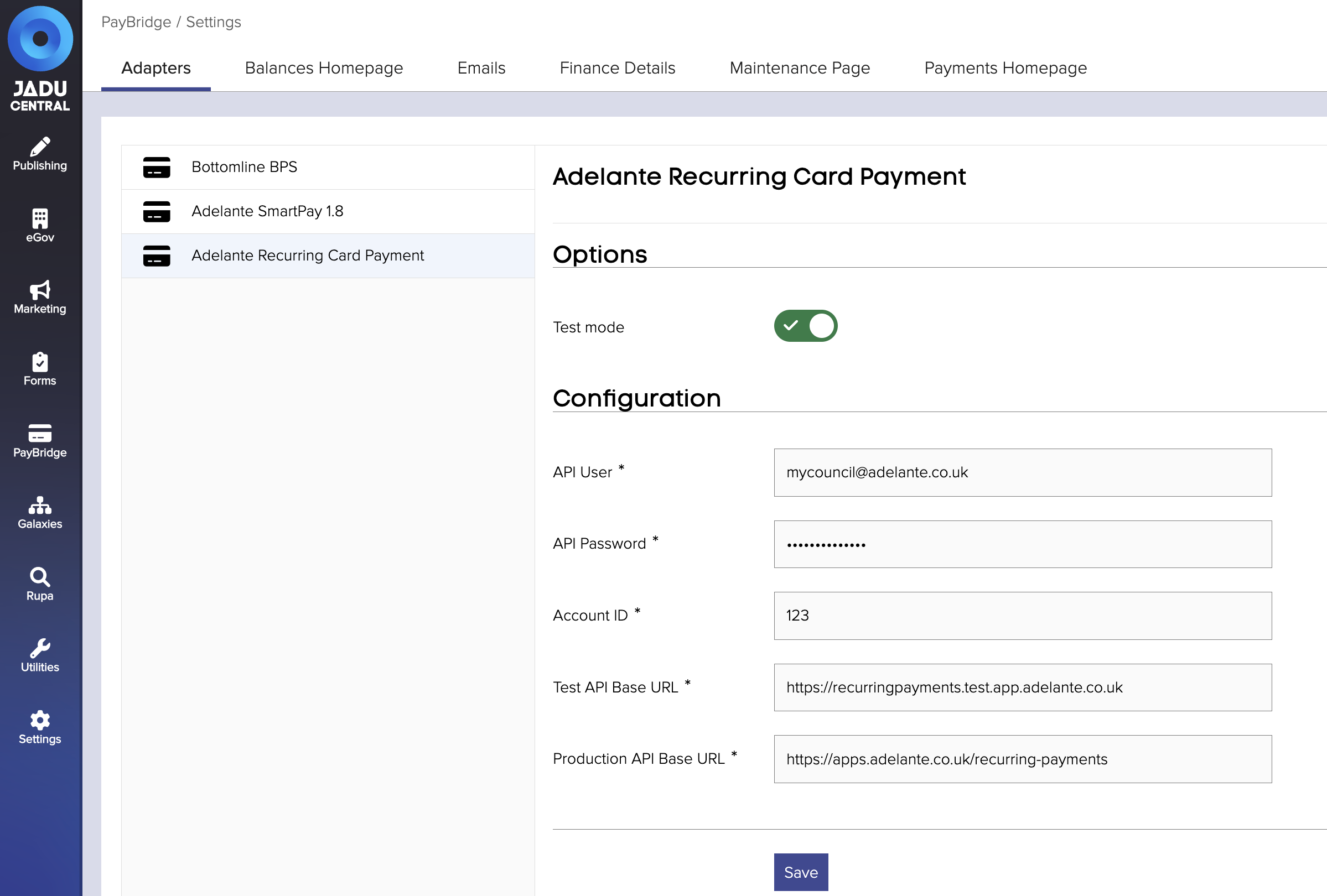
Navigate to PayBridge > Settings > Adapters > Adelante Recurring Card Payment and apply settings as provided by Adelante.
The "Test mode" toggle controls whether the Adelante Test or Production API is used.
Setting up Funds
Navigate to PayBridge > Manage Services > Funds
Create any required funds using valid fund codes for your Adelante account.
When a fund is applied to a Paybridge Service, the fund code is automatically included in requests sent to Adelante.
Creating a Recurring Payment Service
Recurring Card Payment services are configured within the Direct Debit Services area of PayBridge (PayBridge > Manage Services > Direct Debit Services). The integration does not actually involve setting up Direct Debits, it is purely the terminology used within the settings interfaces and has no functional impact. The user facing payments process uses the terminology "recurring payment".
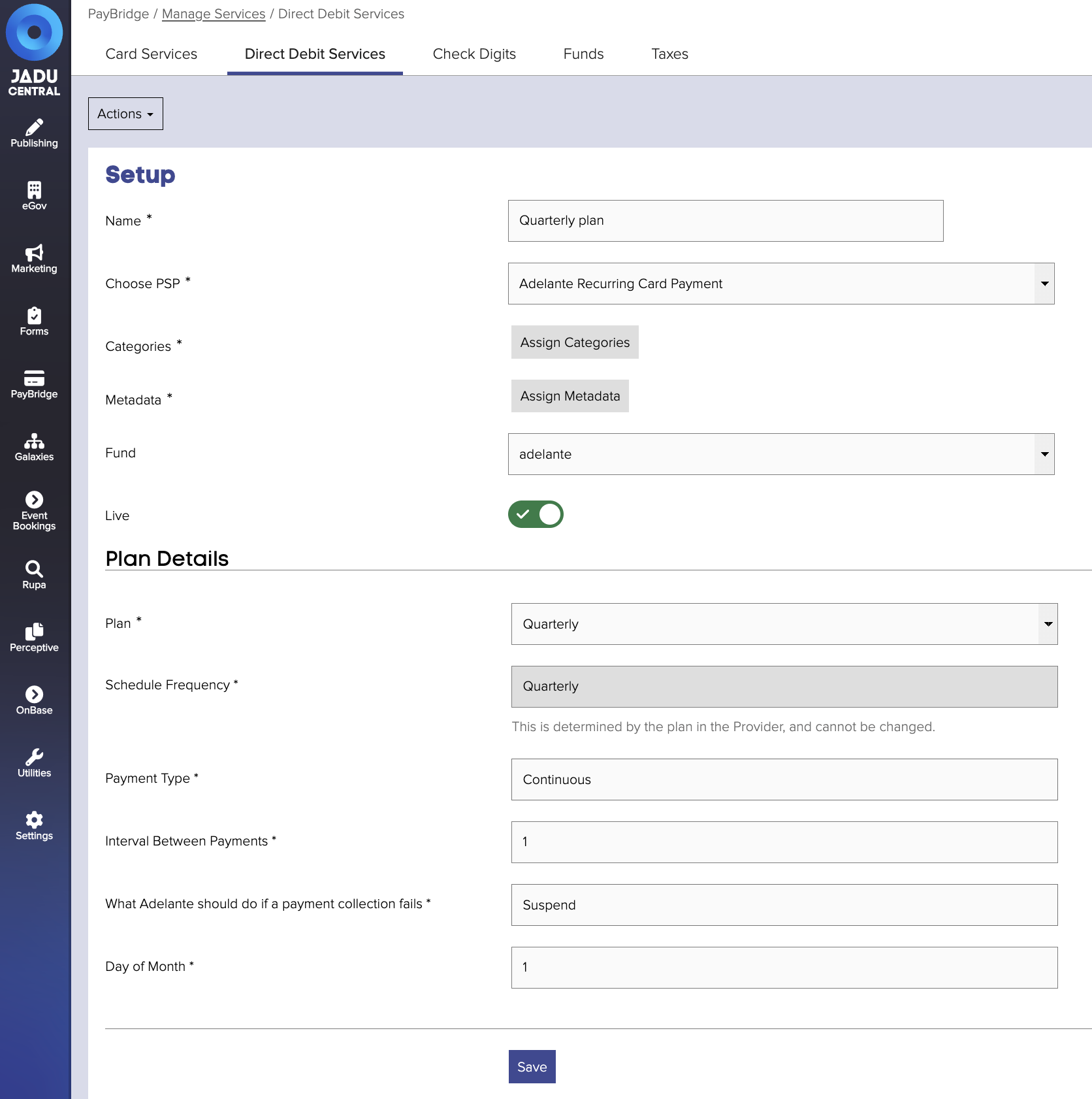
Create a new service, give it a name and select Adelante Recurring Card Payment for "Choose PSP".
Add categories and metadata as neccesary, and selected a previously configured Fund if required.
Ensure the "Live" toggle is enabled.
Plan Configuration
Every service has an associated recurring payment plan.
The plan determines how customer payments will be collected once authorised.
| Setting | Notes |
|---|---|
| Plan | Select from: Daily, Weekly, Monthly, Quarterly, or Yearly |
| Payment Type | Select AutoTopUp or Continuous |
| Interval Between Payments | Expects a number, for example, "2" to take payment every 2 days on a Daily plan |
| What Adelante should do if a payment collection fails | Select from: Continue, ContinueCatchUp, RetryContinue, RetrySuspend, or Suspend |
| Day of Month | If Monthly or Quarterly is selected, a numeric value is expected between 1 and 28 |
Enabling a Form to initiate creation of a Recurring card payment
Recurring card payments are initiated from Forms using a "Create a Direct Debit" mapping template, and run as part of a rule "When the user reaches the review page".
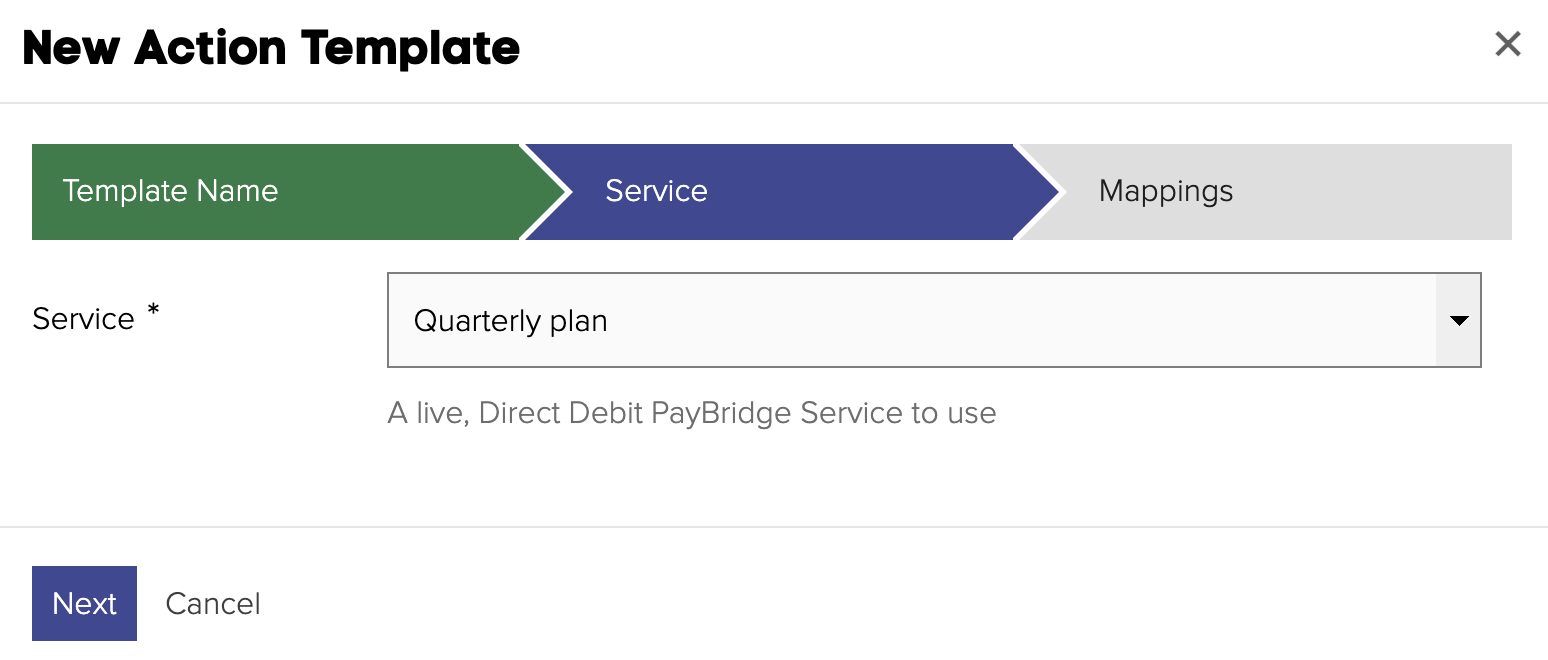
Once you've given your template a name, you'll be prompted to select the Direct Debit service created in the section above.
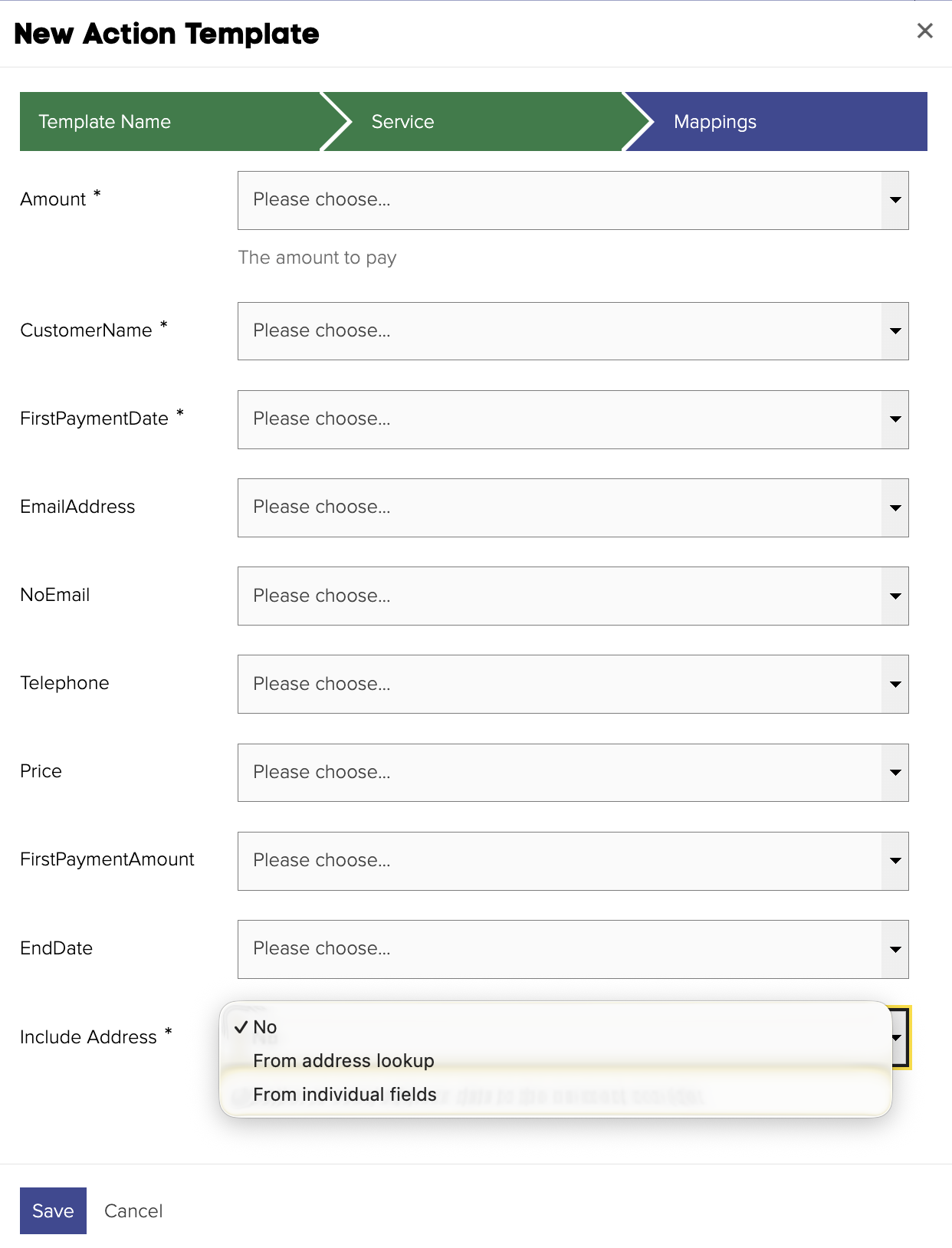
Then you'll be provided with fields to map to. These values can be provided by answers given within the form, details known about the signed-in user, the result of form logics, form metadata values, or hard-coded by entering static text into drop-down field.
| Field | Notes |
|---|---|
| Amount | The recurring payment amount. If a Price code is set, this is just used for display purposes within Paybridge |
| CustomerName | |
| FirstPaymentDate | Ensure that this is formatted as DD/MM/YYYY. Depending on what determines this, you may need to use a date logic to convert to the the correct format |
| EmailAddress | |
| NoEmail | Whether to opt the customer out of emails from Adelante. Expects either Y or N |
| Telephone | |
| Price | If this is mapped, the payment values of the corresponding Adelante price plan will be used. Amount and FirstPaymentAmount will be used when displaying the Paybridge price summary. By convention it is recommended to match these field values, which allows the user to view accurate payment amounts for the plan they are creating. |
| FirstPaymentAmount | If the value is different to "Amount" |
| EndDate | Ensure that this is formatted as DD/MM/YYYY. Depending on what determines this, you may need to use a date logic to convert to the the correct format |
| Include Address | Select from "No", "From address lookup", or "From individual fields". If "From address lookup" is selected", an additional "Address" field will be available, which should be mapped to the unique property identifier. The address data will then be retrieved from the integrated address lookup service. If "From individual fields" is selected, additional fields will become available to map for the various address lines |
The user will fill in the form, and after the final page of questions will be prompted to set up their recurring payment, and redirected to Adelante to enter their card details. Upon successfully completing this process and returning to the Jadu powered website from the Adelenate payment pages, the user's form submission will be completed and any rules configured for when "User submits the form" will be triggered.
The "PayBridge - Payment Reference" form variable will hold the customer reference, which will be in the format: "JaduPay-123-123456". This reference will be needed to later amend or cancel the plan.
Amending or cancelling a plan
Plans can also be amended or cancelled using a form. Two new mapping template types are available under "Adelante Recurring Card Payment"
The form actions to amend and cancel plans do not prevent action by users who did not orignally create the plan, therefore using these actions on public forms would potentially allow someone acting maliciously to amend / cancel payments of others.
Jadu would therefore recommend protecting these forms by some other means, e.g. by only allowing them to be completed by a staff member (who can verify identity), or if Jadu Connect is part of the solution, by storing the plan's customer reference on a Jadu Connect case and retrieving it from the case during the form submission. The customer's association with the case can be verified via sign-in and/or by using access codes depending on whether authentication is forced for forms when setting up and managing the plan, and whether cases are created as, or assigned to the signed-in user.
Amend a plan
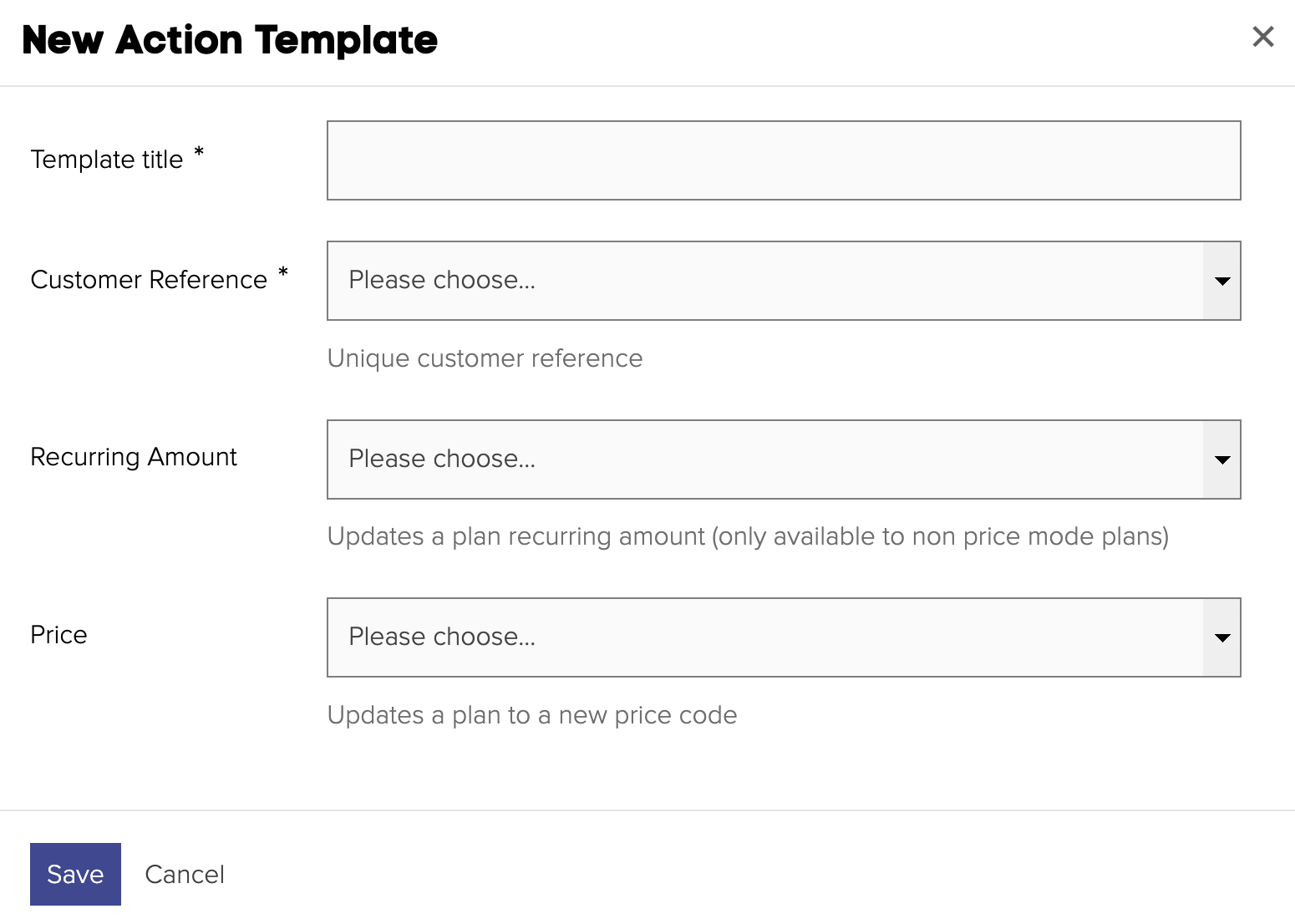
| Field | Notes |
|---|---|
| Customer Reference | The reference provided in the "PayBridge - Payment Reference" variable at the end of the form creating the plan to be amended. |
| Recurring Amount | The new recurring amount to be set for the plan if the "Price" mapping is not set |
| Price | The new price code to set for the plan |
Cancel a plan
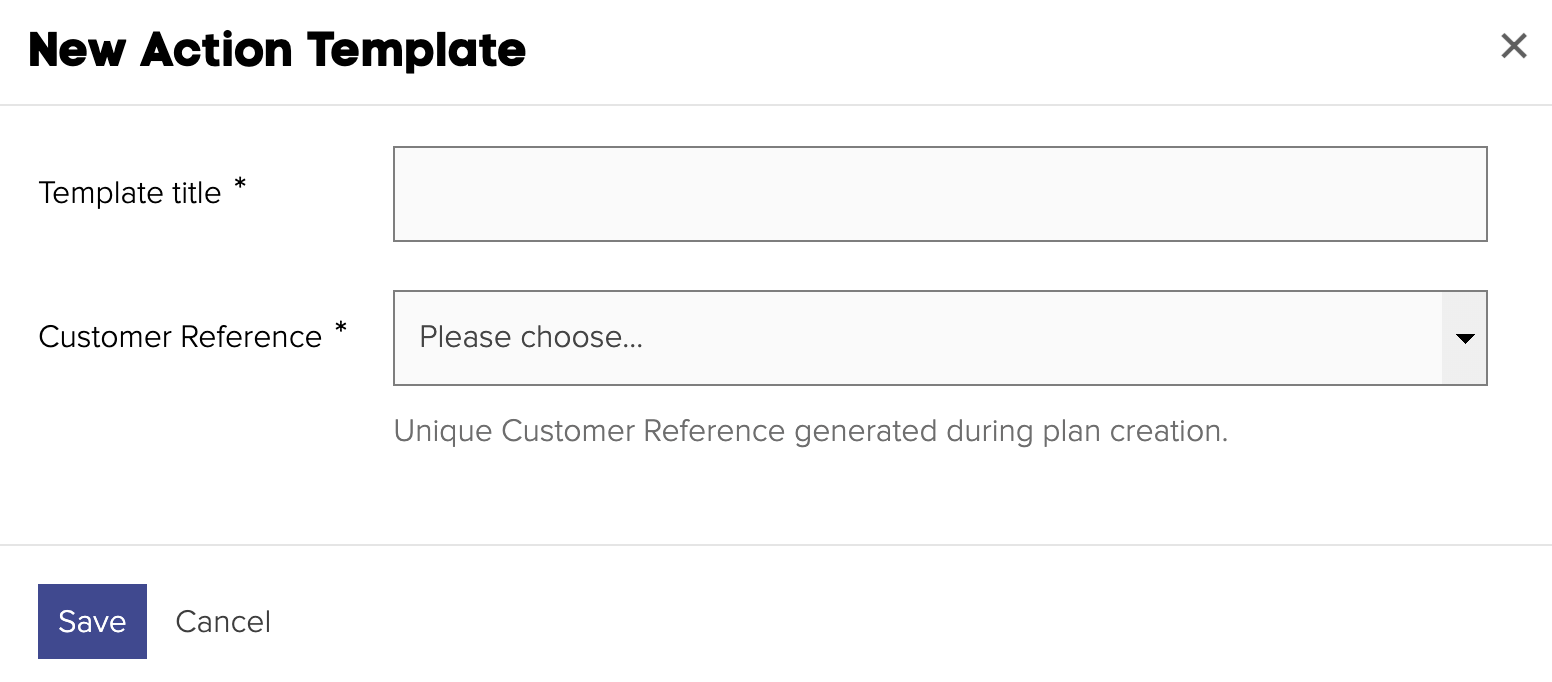
| Field | Notes |
|---|---|
| Customer Reference | The reference provided in the "PayBridge - Payment Reference" variable at the end of the form creating the plan to be cancelled. |