Front-end user account security
From Jadu Central 4.1, there are additional account and password complexity options for registered front-end users. Features include:
- Ability to disable front-end user accounts from logging in.
- Ability to automate locking of dormant front-end user accounts with a defined a dormancy period.
- Password history restrictions and defined reuse period for front-end users.
- Ability to specify a password expiration period for front-end users.
Security Settings options
You can access Security settings from Settings, then Site Settings.
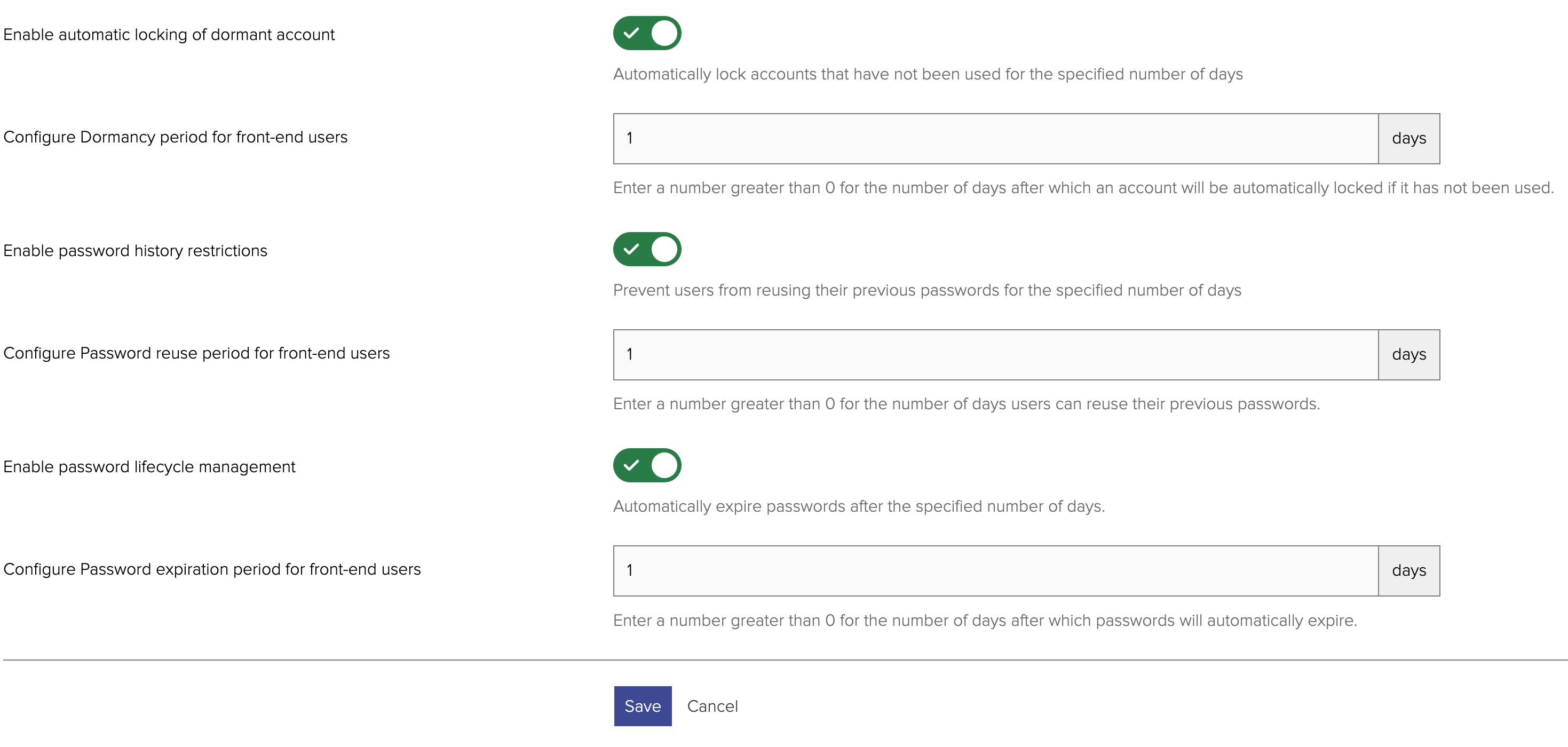
| Setting | Description |
|---|---|
| Enable automatic locking of dormant account | A toggle to automatically lock accounts that have not been used for the specified number of days. |
| Configure Dormancy period for front-end users | Enter a number greater than 0 for the number of days after which an account will be automatically locked if it has not been used. |
| Enable password history restrictions | A toggle to prevent users from reusing their previous passwords for the specified number of days |
| Configure Password reuse period for front-end users | Enter a number greater than 0 for the number of days users can reuse their previous passwords. |
| Enable password lifecycle management | A toggle to automatically expire passwords after the specified number of days. |
| Configure Password expiration period for front-end users | Enter a number greater than 0 for the number of days after which passwords will automatically expire. |
Locking front-end user accounts
Automatically, after a set time period
To automatically lock any front-end user accounts that have not been accessed in a set period of time:
- Go to Settings, Site Settings then Security Settings.
- Toggle Enable automatic locking of dormant accounts.
- Define the number of days after which an account should be locked in the Configure Dormancy period for front-end users field.
This will automatically change the user account Status field to Dormant after the set period of time.
If a front-end user attempts to login to a dormant account they will receive an email informing them that their account exists but is not currently active and they will need to contact the organisation to have their account re-enabled before they can sign in.
Manually, user by user
To manually lock a front-end user account:
- Go to Marketing, Registered Users and the User details page for the account you wish to disable.
- Go to Actions and change the Status field to 'Inactive'.
If a front-end user attempts to login to a inactive account they will receive an email informing them that their account exists but is not currently active and they will need to contact the organisation to have their account re-enabled before they can sign in.
Setting a password expiry period
This feature sets how often front-end user passwords need to be reset.
- Go to Settings, Site Settings then Security Settings.
- Toggle Enable password lifecycle management.
- Define the number of days after which a password should be reset in the Configure Password expiration period for front-end users field.
Setting a password reuse period
This feature sets password history restrictions and defined reuse period for front-end users.
- Go to Settings, Site Settings then Security Settings.
- Toggle Enable password history restrictions.
- Define the number of days after which a prevous password can be reused in the Configure Password reuse period for front-end users field.
Disabling a front-end user account
- Go to Marketing, Registered Users and the User details page for the account you wish to disable.
- Go to Actions and change the Status field to 'Inactive'.
The account will now be prevented from logging in.
Enabling a front-end user account
- Go to Marketing, Registered Users and the User details page for the account you wish to enable.
- Go to Actions and change the Status field to 'Active'.
The account will now able to log in.