Symology Aurora
The Symology Aurora integration allows cases to be raised in Symology Aurora using data from Jadu Connect cases. At the point a Symology Aurora Case is created via Jadu Connect, information from the Case can also be pulled back and stored in fields on the associated Jadu Connect Case. It also allows attachments associated with the Jadu Connect Case at the point the Aurora Case is created, to be uploaded to that Case.
The integration also supports the receipt of updates from Symology Aurora in order to update the associated Jadu Connect case. As Aurora cannot push updates directly to Jadu Connect, these updates are facilitated via an additional element of the integration which must be installed on a Jadu Central instance.
General settings
On the General tab, you can enable/disable the integration with Symology Aurora, and configure its settings.
When you save the settings, with the integration enabled, Jadu Connect will attempt to authenticate with the Aurora Identity Service to verify the credentials. If this fails, the settings will not be saved, and an error message detailing the reason for the failed connection will be displayed.
Aurora does not provide an API endpoint that can be used to test the connectivity & API user access to the Case API itself, therefore you should manually confirm that these are configured correctly to avoid any integration failures.
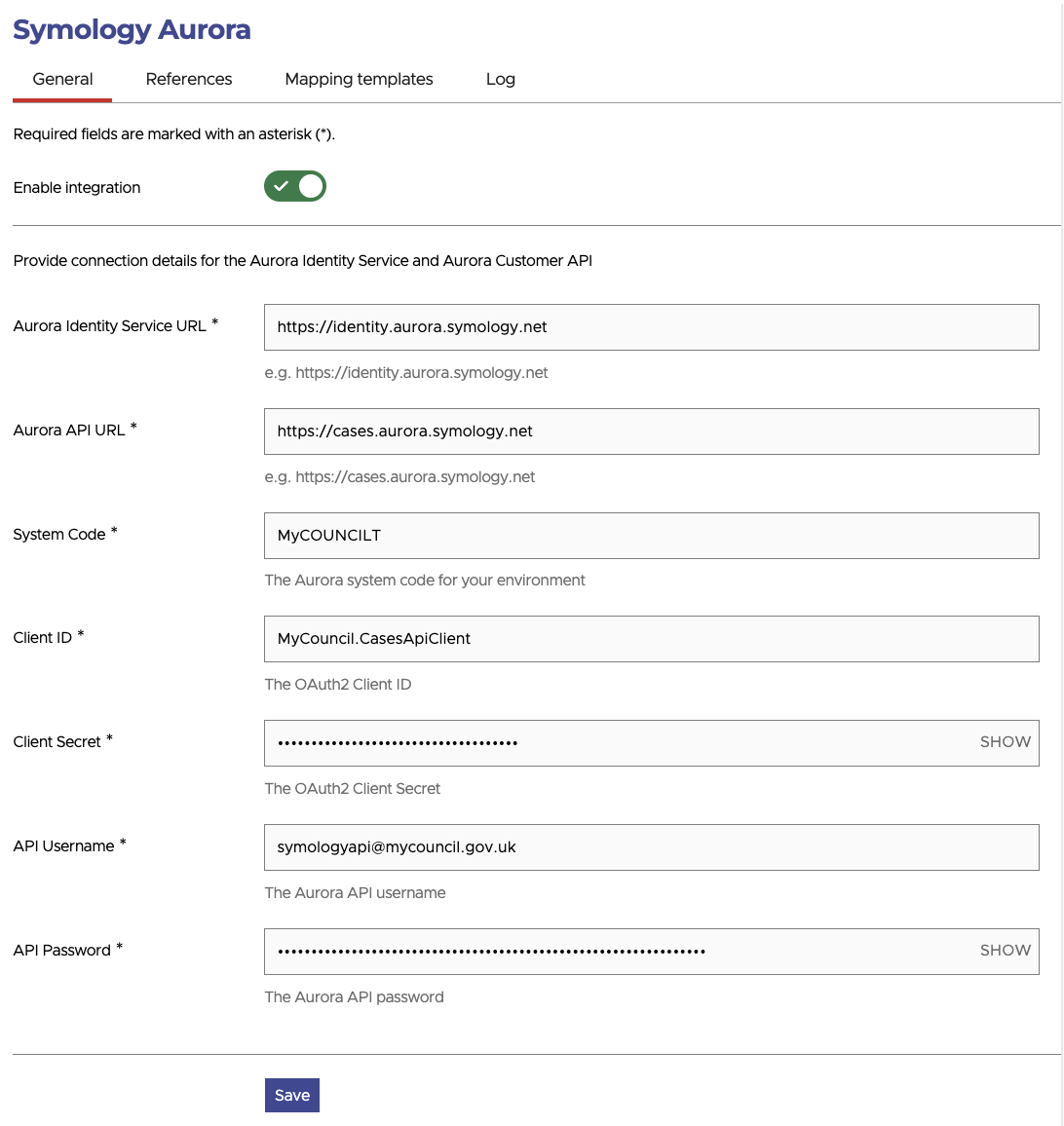
- Aurora Identity Service URL - the URL to the Symology Aurora Identity Service. For the production environment this is https://identity.aurora.symology.net
- Aurora API URL - the URL to the Symology Aurora Cases API. For the production environment this is https://cases.aurora.symology.net
- System Code - the code for your Aurora System.
- Client ID - the OAuth2 Client ID for API authentication.
- Client Secret - the OAuth2 Client ID for API authentication.
- API Username - the username assigned to the API user, this will typically be an email address.
- API Password - the password for the API user.
References
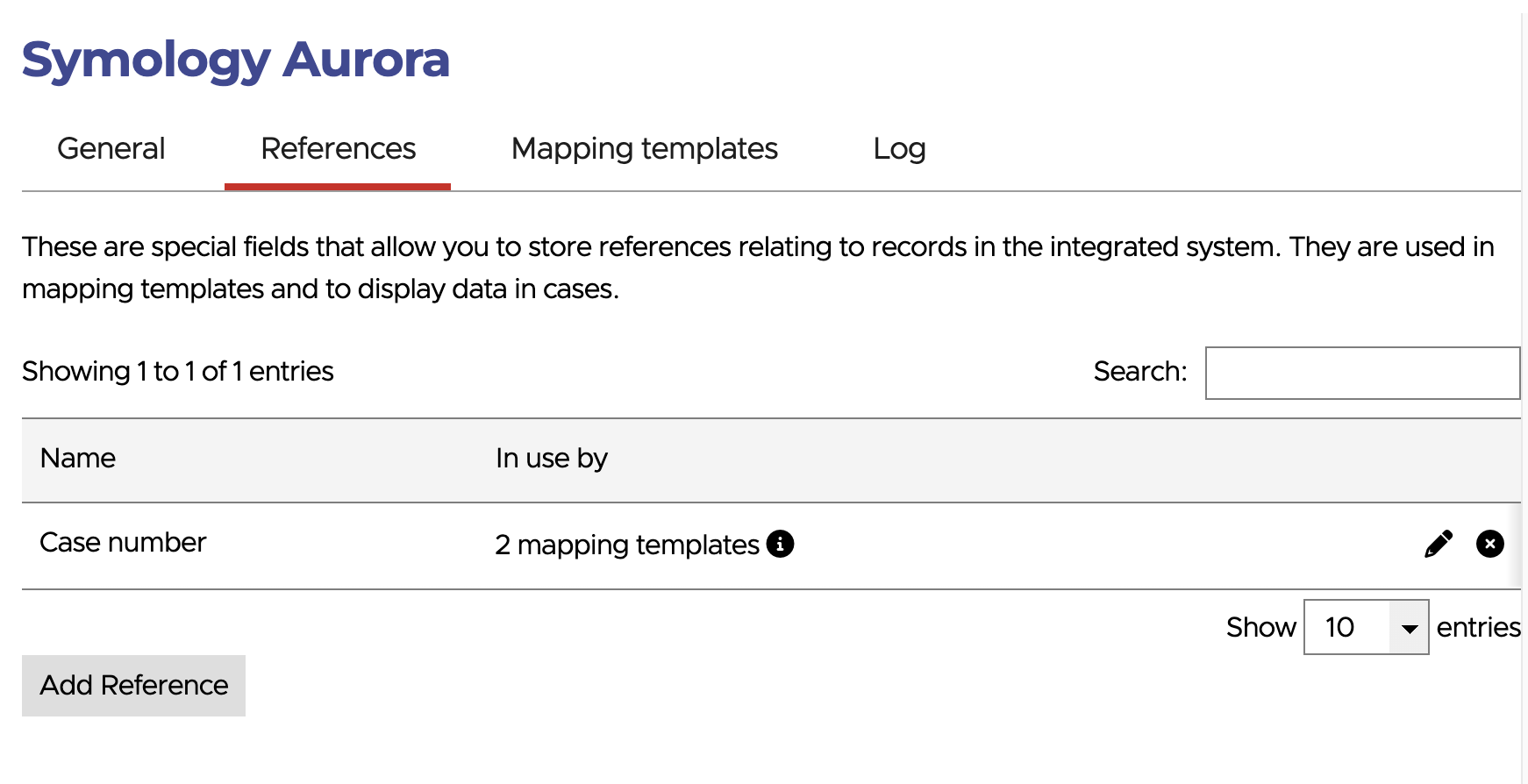
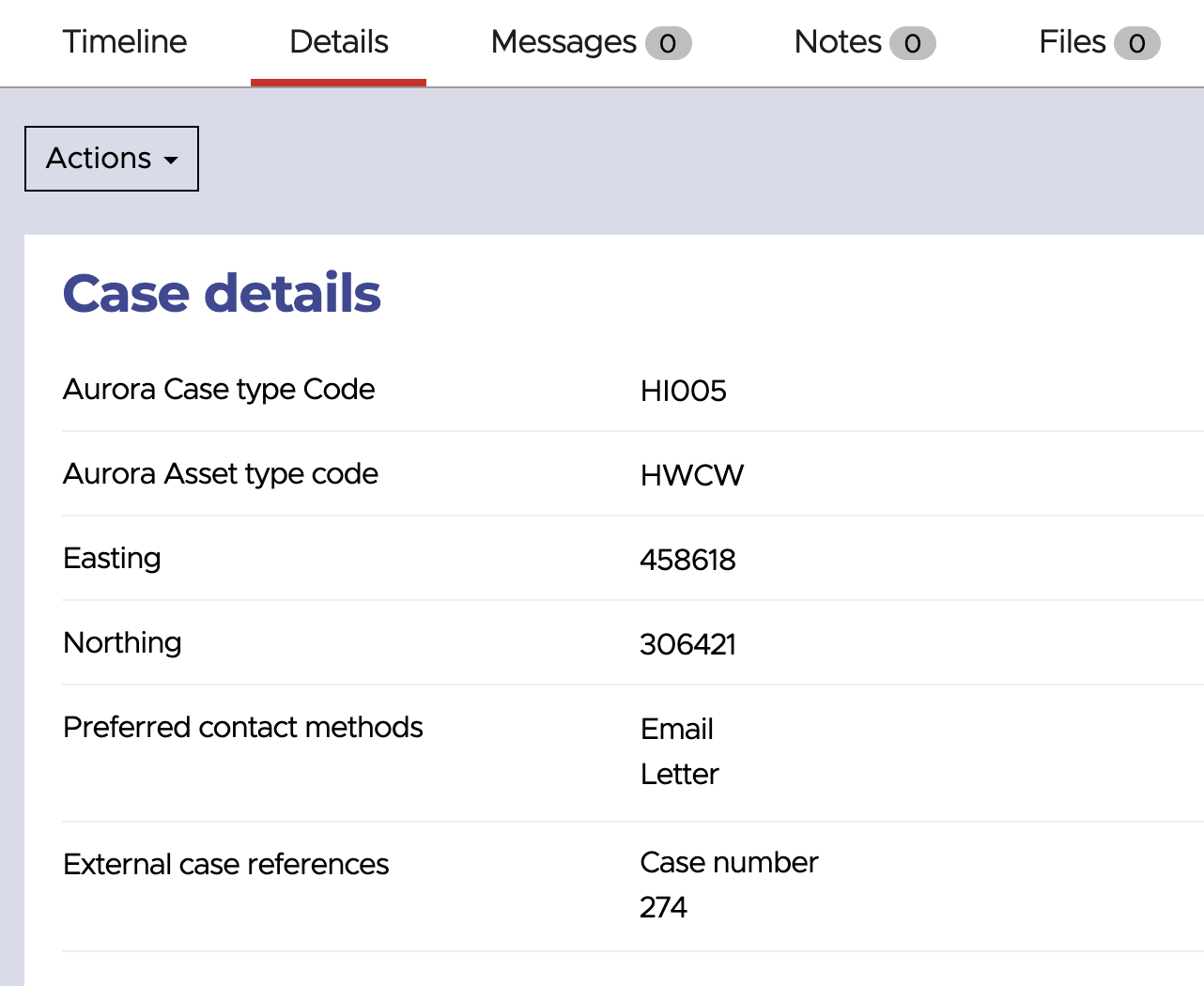
A Reference is a special type of field used to store a reference number against a case. When creating a mapping template, the reference to which the template applies must be selected.
Mapping templates
A Mapping template is a set of mappings which define the data to be passed between Jadu Connect and Symology Aurora when creating cases in Aurora, and receiving updates from Aurora.
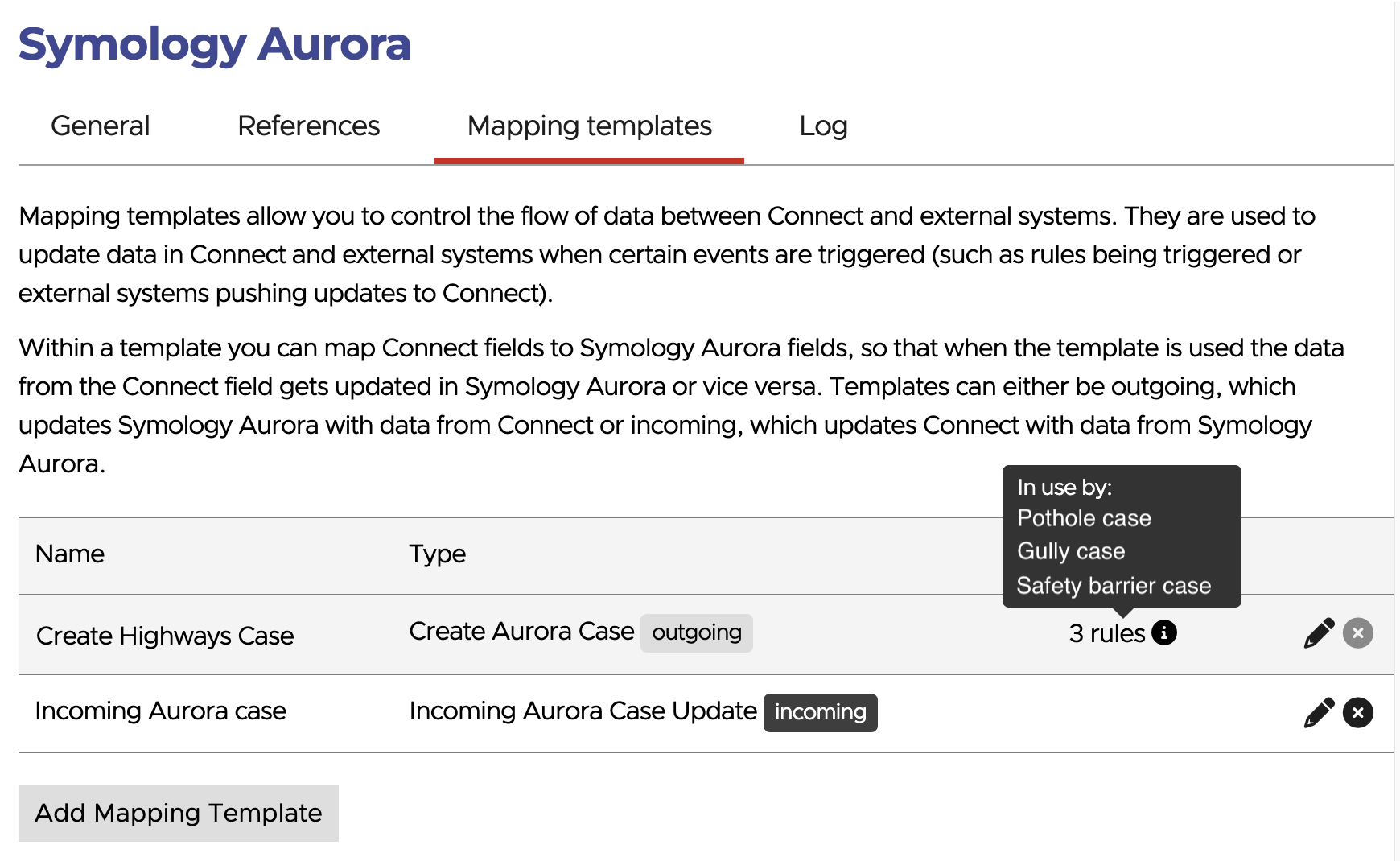
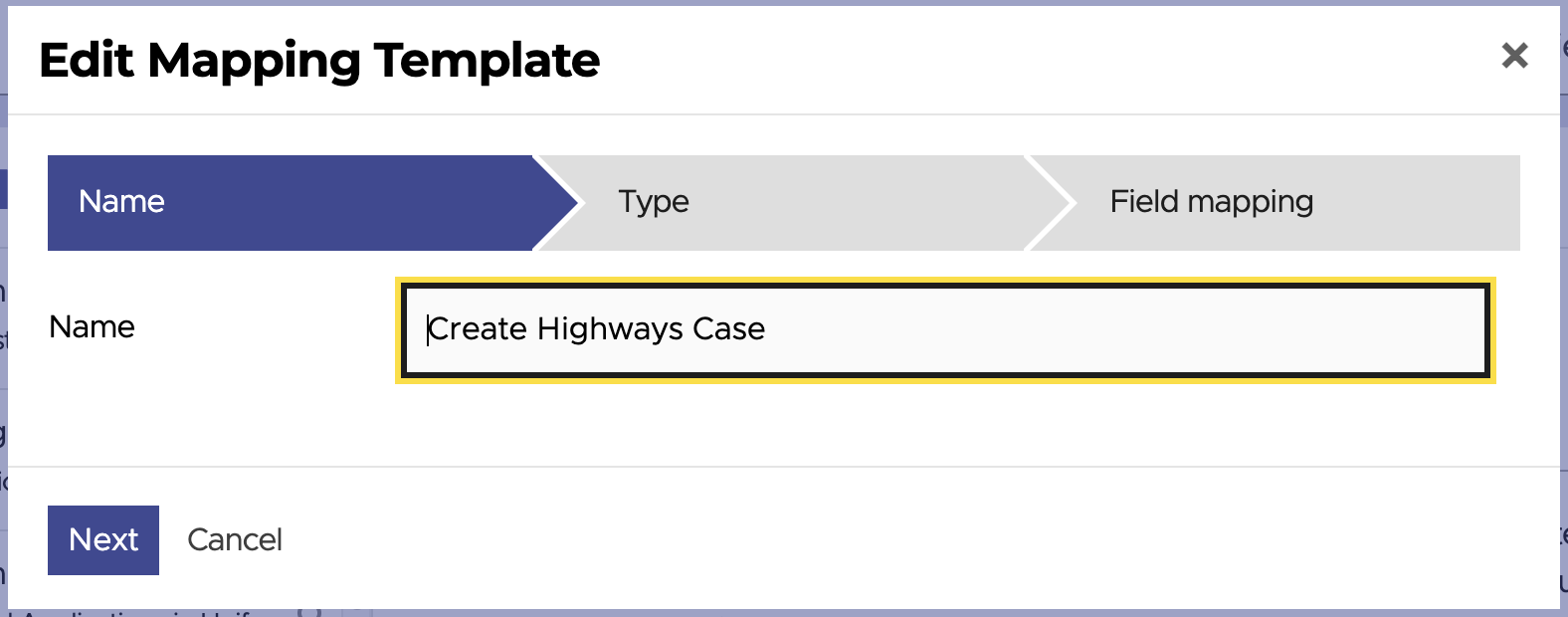
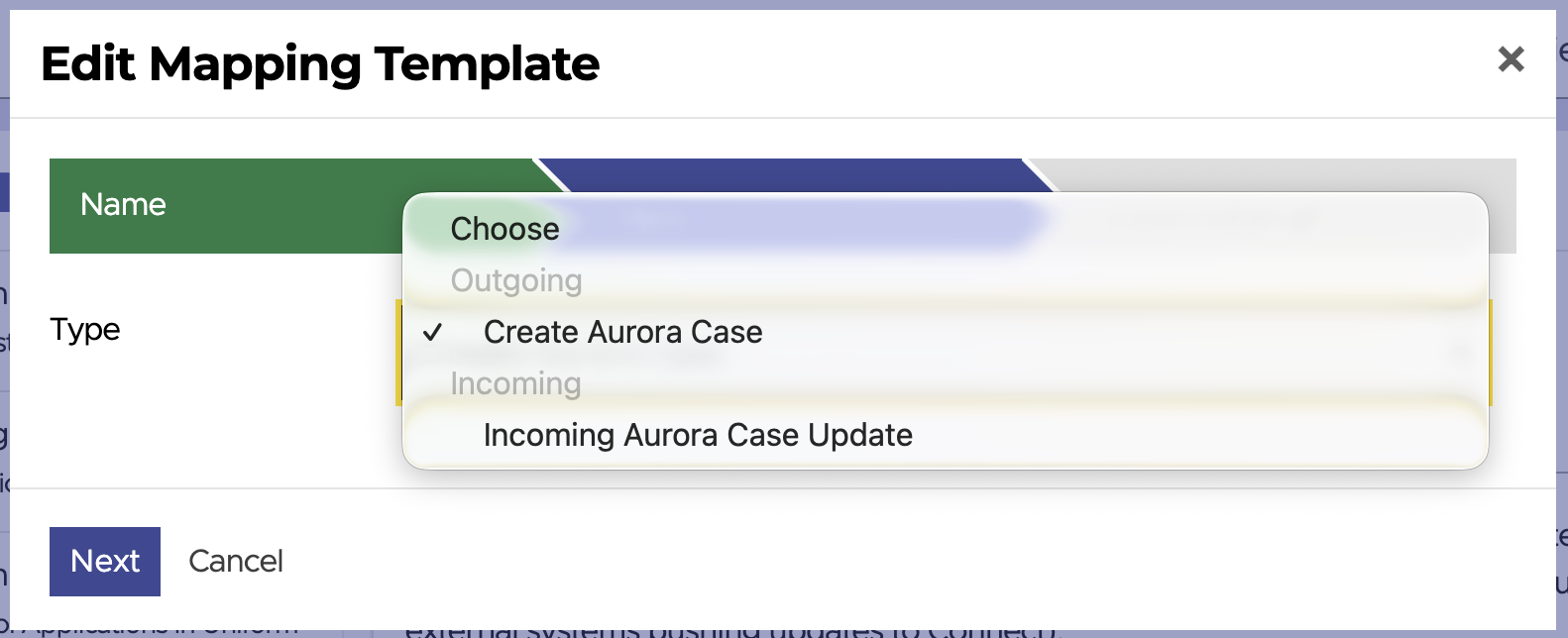
After giving your mapping template a name, you must select the type. 2 types of mapping template can be created:
- Create Aurora Case (outgoing) - defines the fields to be populated when creating a Symology Aurora Case.
- Incoming Aurora Case Update (incoming) - defines the data which should be pulled back from the Symology Aurora Case and stored on the Jadu Connect Case, following a create action instigated by Jadu Connect, and on receipt of Aurora Case updates.
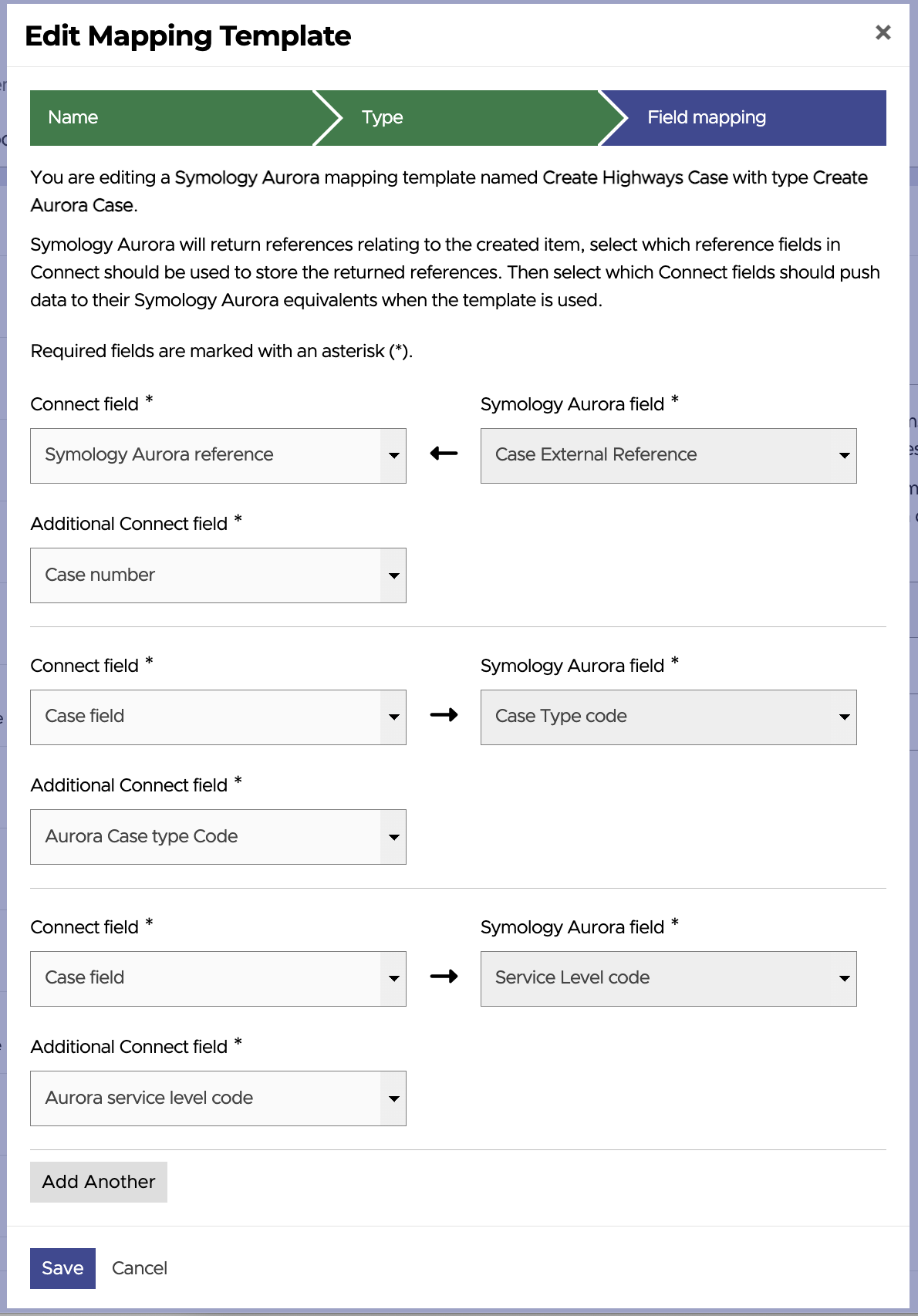
Finally, you must complete the mappings.
In the first row of the mappings you must select which Reference the template applies to. For Create Aurora Case templates, this means that the case number for the new Aurora Case will be stored in this Reference. For Incoming Aurora Case Update templates, this means that the template would be applied following a create action linked to this Reference, and when we receive an update for an Aurora Case where the Case Number is held within this Reference.
The subsequent rows are field mappings. Each of the templates has required fields that must be mapped. You can then add as many additional mappings as you wish by clicking the Add Another button.
The following type of data can be used from the Jadu Connect case:
- Case field values
- Case dates
- Linked Person details
- Linked Address details
You can also configure a manual text mapping if the value of the field should be the same each time that mapping template is used.
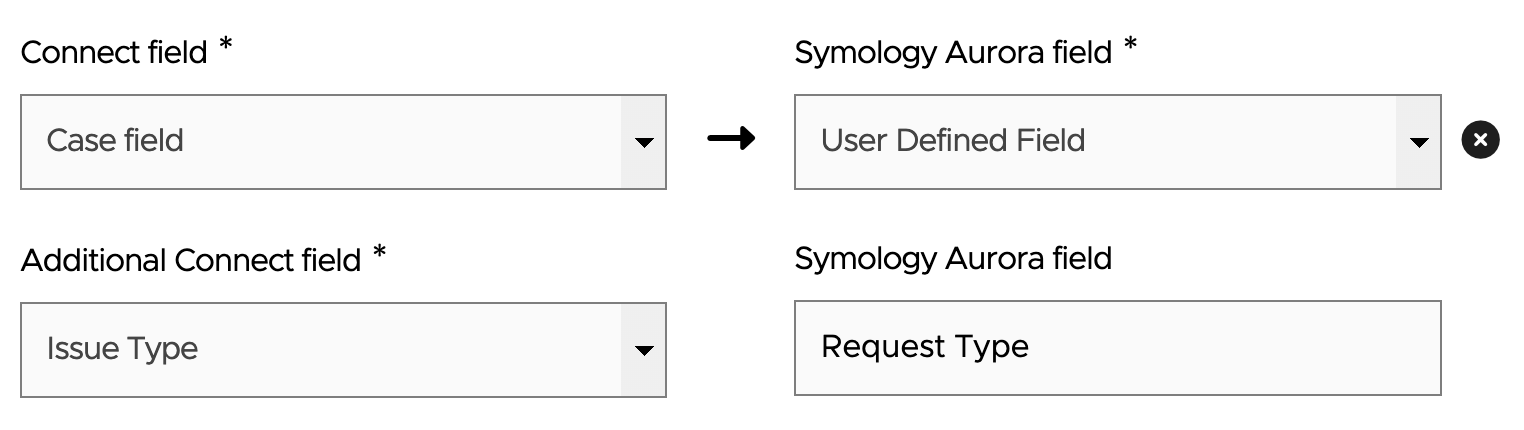
To map Jadu Connect values to/from Aurora User Defined fields, from the dropdown on the right-hand side of the mappings interface select User Defined Field, a text field will then appear below the dropdown. This text field expects the User Defined Field “code” or “name”, which can be entered either as a static value or from the value of a case field using a case detail placeholder
You should not rely on the integration to ensure that data is removed from the Jadu Connect case or the Aurora Case automatically when clearing down personal data in either system. The specific tools provided in each system should be used directly to ensure that no personal data is left unnecessarily.
Outgoing mapping templates are applied via rules, using the Apply integration action.
Incoming mapping templates are applied as a result of a Create Aurora Case mapping template being applied, and on receipt of Aurora Case updates. All incoming mapping templates for the applicable Reference will be applied.

Since integrations are run as background tasks and will be retried in the case of any connectivity failure, it is likely that any subsequent rule actions (e.g. sending an email) will be performed before the Case has been created/updated in Aurora. This should therefore be accounted for when designing workflows.
Attachments
At the point that the Symology Aurora Case is created, any attachments that exist on the Jadu Connect case will be uploaded to Aurora and attached to the Aurora case. If for any reason an attachment file cannot be uploaded to Aurora (e.g. it is rejected due to size or file type), as a fallback, a link to the file in Jadu Connect will be added to the Aurora Case instead. It will be necessary to sign in to Jadu Connect and for the user to have the required permissions to view the case attachments. For this fallback to work, you will need to request that Symology whitelist the domain of your Jadu Connect tenant account, within your Aurora system.
Any files that are added to the Connect case after the Aurora Case has been created, will not be added to the Aurora Case.
Since Central Forms will attach files from the form submission after the case has been created, to avoid the integration creating the Aurora Case running before all files have been attached, it is advised that the integration be deferred slightly (e.g. by a minute) to avoid the files being missed. This can be achieved by running the integration via a rule using a "time in status" trigger within the workflow setup.
Log
The integration log provides a summary of case integration actions that have occurred; including where Aurora Cases have been successfully created, and where Aurora Cases have failed to be created (including the reason for the failure, if known). The log also details any validation failures when creating the Aurora Case. Reviewing the integration log can help to identify incorrect mappings or areas where validation during data capture is insufficient.
Where an action has failed due to a connection issue or other intermittent error, it will be retried up to a maximum of ten times over a seven hour period. If integration has failed due to a validation error (e.g. due to an invalid mapping value), it will not be retried.